Manually publishing to ArupCompute
You can publish new libraries either with an easy web based wizard or manually via an API. You can follow similar steps to publish a new version of a library you have published previously.
Recompiling
Before publishing remember to recompile your code.
dotnet core / VS Code
Run the command dotnet publish
Visual Studio
Either use the terminal and run the command dotnet publish or follow below steps
- Right-click on the project in the Solution Explorer.
- Select Publish from the context menu.
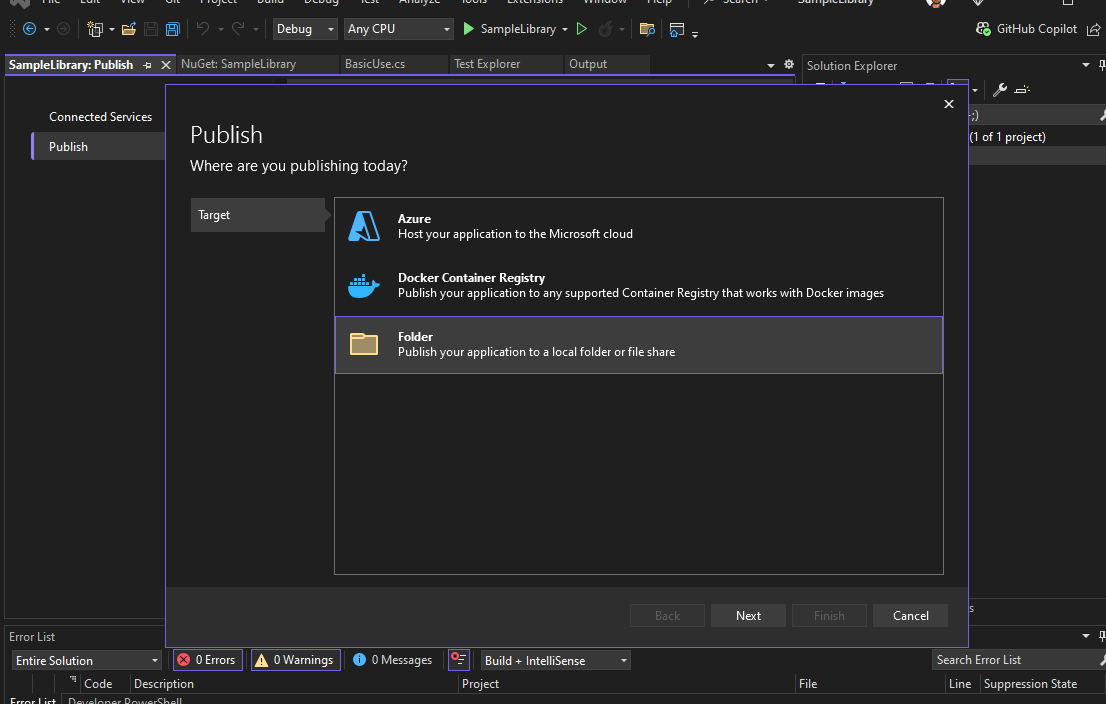
- This opens the Publish Wizard, where you can, where you can chose the target as
Folder.
- Next, either use the default location bin\Release\net8.0\Publish\ or specify a custom path.
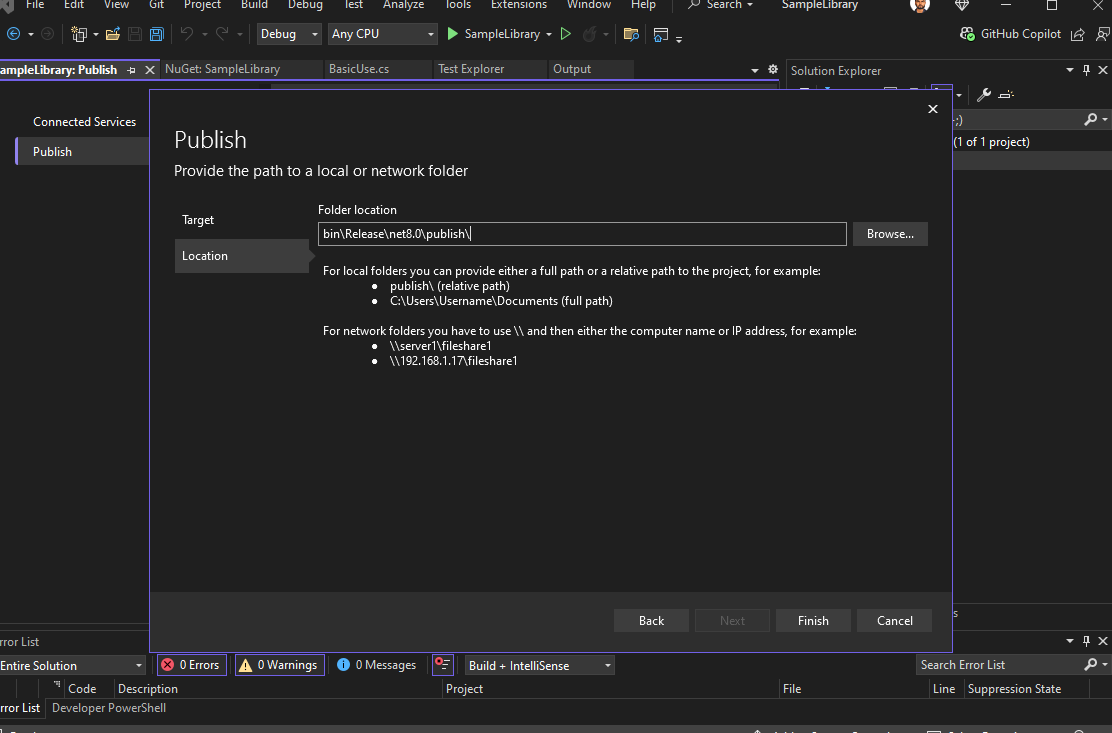
- On Finish, publish profile will be created.
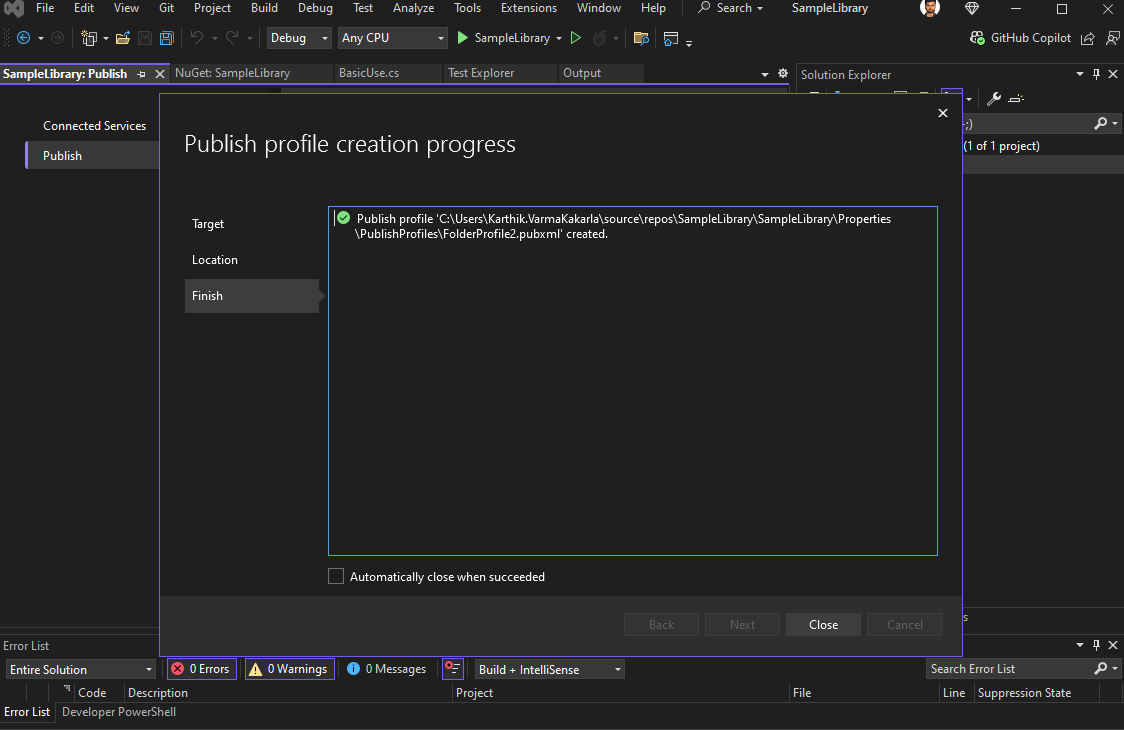
- Close publish profile window, now the
Publishbutton is displayed.
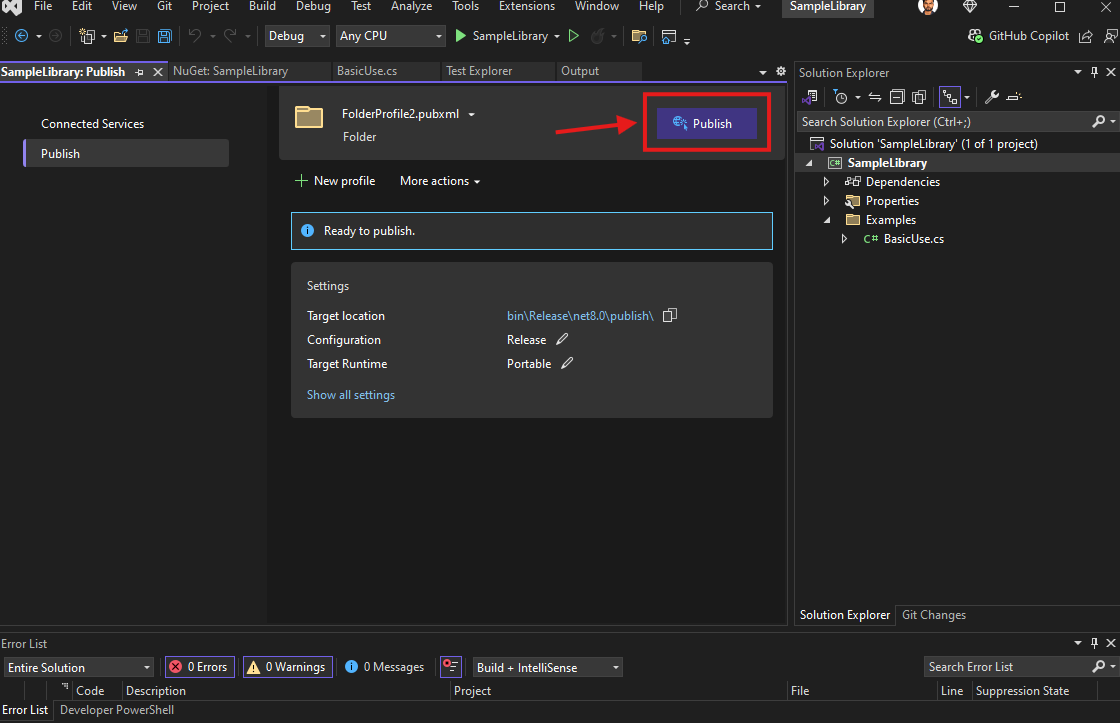
- Upon clicking Publish, the necessary dlls for the library will be output to the directory chosen in Step 4.
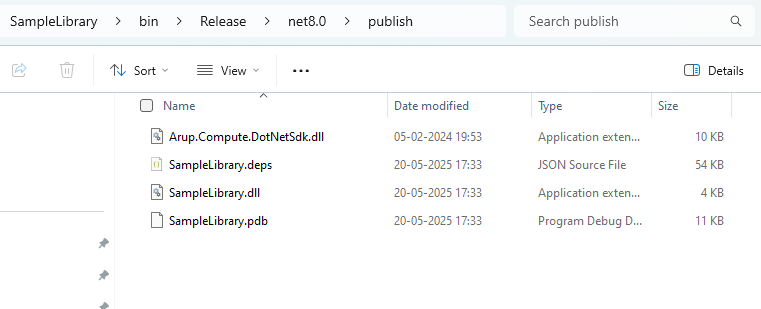
Library Zip File
To publish a new library/version you first need a library zip file.
You can create one by putting all your dlls and dependencies in a zip file without any top level folder:
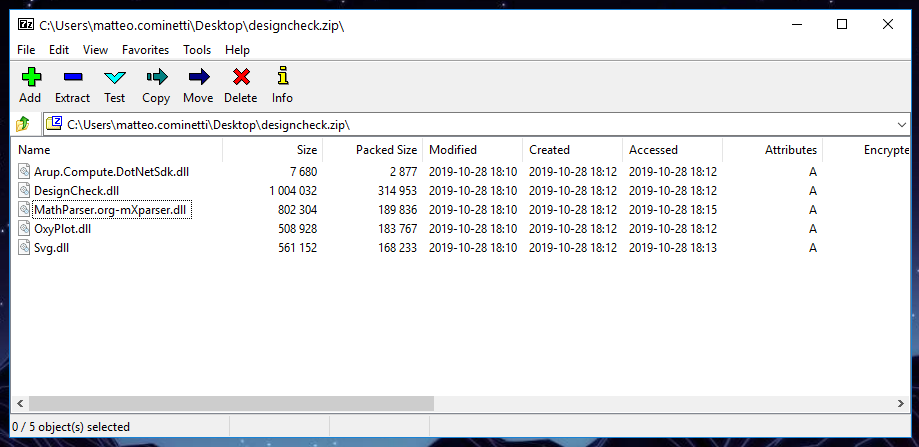
Remember to include all reference .dlls including the ArupCompute ones
Using the Web UI
Wizard
Then simply use the new web base wizard to publish it:
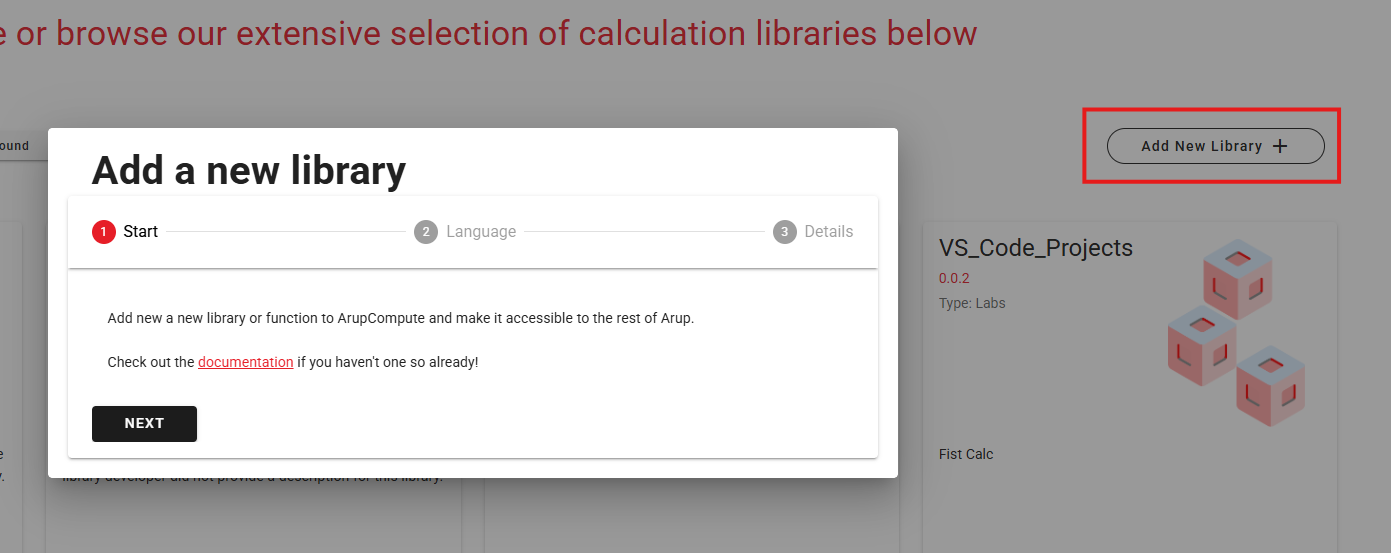
- Click on
Add New Librarybutton, that open up the wizard to add a new library.
- Next, select the language of your library
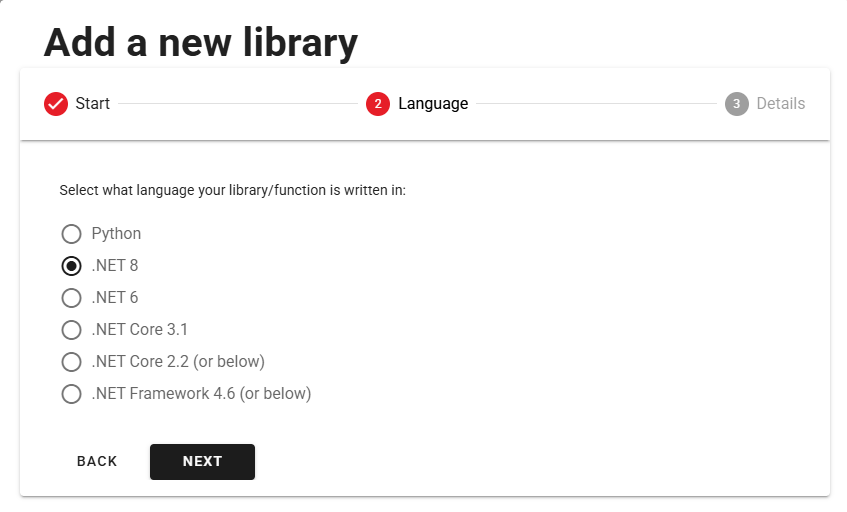
If you have been following the VS Code / dotnet core guidance, then here you should choose .NET Core
- Next, fill all the required fields and upload a zip file.
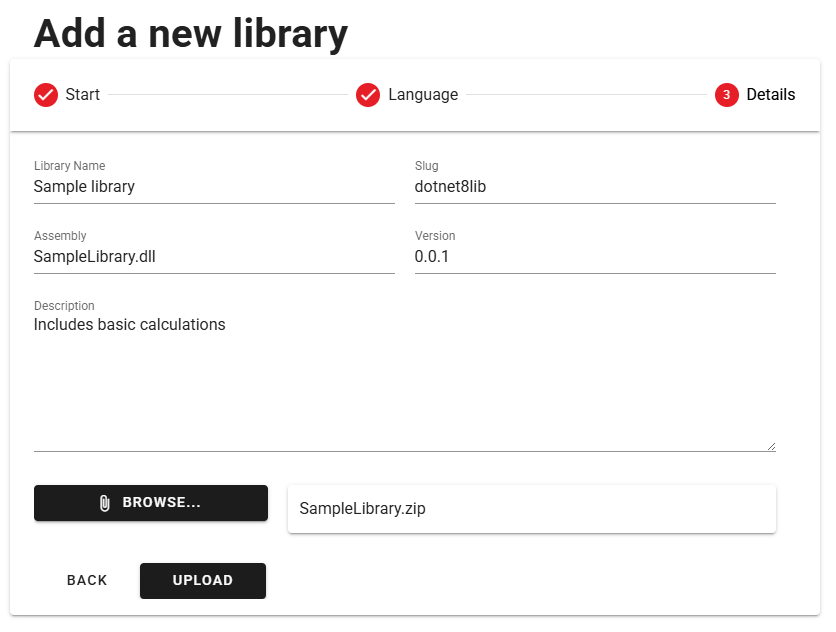
The Slug field is a unique string that identifies your library, currently it's only being used internally, but in the future it might be used to generate the URLs to your calculations.
The Version field enforces semantic versioning, you can add a suffix like "-beta" if publishing a pre-release.
The upload process might take up to a few minutes! Don't despair!
Once the upload finishes, if everything was process successfully you'll see the new library appear in a few minutes. If it doesn't happen let us know!